 UGTKengine within an engine
UGTK / Systems / API / Connection System Completed

Connection System
Summary
The Connection System tells you whether the device is online and how good the connection is.
Mn_ConnectionChecker probes a lightweight URL on a timer, measures the latency and maps it to a
0..4 signal level (0 = offline … 4 = excellent); Mn_ConnectionIndicator shows the level with
bundled signal-strength icons (0–4 bars).
Content
Modules Dependencies
No code dependency: the scripts only use UnityWebRequest and uGUI.
The bundled prefab, however, shows the latency with a TextMeshPro label driven by
TextUpdater System:
import that module (and TextMeshPro) too, or delete the LatencyText child if you only need the icon.
Setup
Drop the ConnectionIndicator prefab under a Canvas — it already carries the checker, the icon
with the five signal sprites (Art/Signal_0..4.png) and the latency label, and starts probing on
enable with no further configuration:
Prefab structure:
ConnectionIndicator      Mn_ConnectionChecker (204 URL, 5 s interval, 4 s timeout, 100/250/600 ms)
├── Icon                 Image + Mn_ConnectionIndicator (levelSprites → Art/Signal_0..4)
└── LatencyText          TextMeshProUGUI + Mn_TextUpdater (binds "LatencyMs", suffix " ms")
Or add the components by hand: Mn_ConnectionChecker anywhere + Mn_ConnectionIndicator on an
Image (the indicator finds the checker on itself or its parents when the field is empty).
How To Use
Tune the probe and the quality thresholds in the inspector — lowering them makes the icon drop to fewer bars without touching the network:
Inspector (checker): Check Url (default returns an empty 204), Interval Seconds, Timeout Seconds,
Check On Enable (starts the loop automatically), and the latency→level thresholds
Excellent Ms / Good Ms / Weak Ms.
var conn = GetComponent<Mn_ConnectionChecker>();
bool online = conn.IsConnected;    // level > 0
int level  = conn.CurrentLevel;    // 0..4 (-1 before the first probe)
float ms   = conn.LatencyMs;       // last measured latency (-1 offline)
conn.CheckNow();                   // extra probe on demand
conn.StartChecking();              // (re)start the periodic loop
conn.StopChecking();               // stop the loop
Events (Inspector or code — they are public fields, so AddListener works):
onLevelChanged(int), onLatencyMeasured(float ms), onConnectionLost, onConnectionRestored.
The indicator maps levels to levelSprites[0..4] (offline → 4 bars); Tint By Level optionally
tints red/orange/yellow at low levels.
Good to know:
- onConnectionRestored also fires on the first successful probe, because CurrentLevel starts
at -1: treat it as "we have a connection", not strictly as "we got it back".
- The loop uses WaitForSecondsRealtime, so it keeps probing with Time.timeScale = 0 (pause menus).
- StopChecking() stops the loop but not a probe already started by CheckNow().
- The measured value is an HTTP round trip (request setup included), not an ICMP ping.
Testing Scene
Open Debug/ConnectionScene.unity and press Play: the placeholder -1 ms is replaced by the first
measurement and the icon lights up the matching number of bars:
The first probe is always the slowest (DNS + TLS handshake), so it often lands on level 2 even on
a good line — the following probes, every Interval Seconds, settle on the real level.
The label prints the raw float (Mn_TextUpdater has no number formatting): expect
419,4894 ms, not 419 ms. For a clean readout, wire onLatencyMeasured to your own method and
write Mathf.RoundToInt(ms) + " ms".
To see the offline state without unplugging anything, point Check Url at a non-existent domain: the
next probe fails, the icon switches to Signal_0 and the label shows -1 ms.
Technical Info
- Mn_ConnectionChecker: coroutine loop — fast
Application.internetReachabilitygate, then a timedUnityWebRequestprobe; any HTTP answer (including a protocol error) proves connectivity, and the latency picks the level. ExposesCurrentLevel,LatencyMs,IsConnectedand the nestedIntEvent/FloatEventtypes. - Mn_ConnectionIndicator:
Image-based icon ([RequireComponent(Image)]) bound to the checker'sonLevelChanged, withApplyLevel(int)public for manual use. - Art/Signal_0..4.png: bundled white signal icons (transparent background), 0–4 bars.
This module ships no custom inspector: both components use the default one.
© 2026 Marcello De Bonis. All rights reserved
More in API.
all 8 →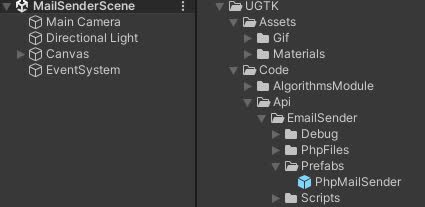
EmailSender
EmailSender is a system that allows you to send emails from your game.
Completed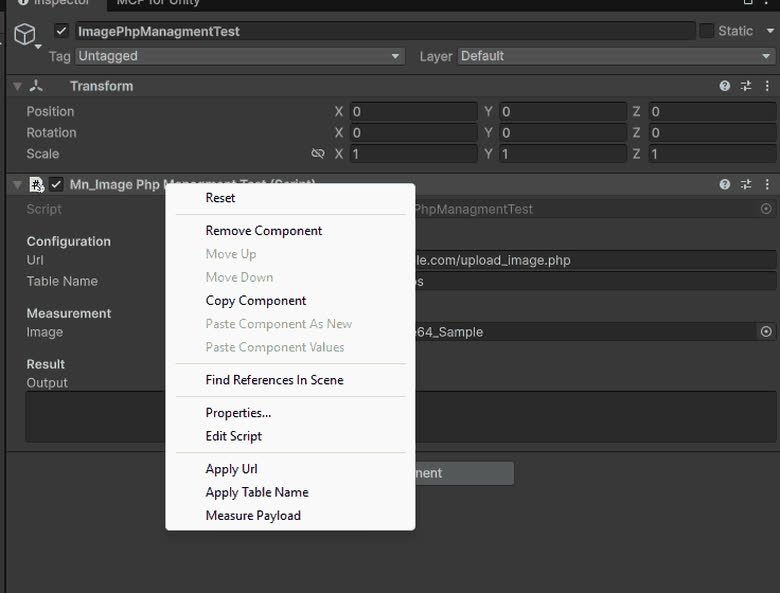
ImagePhpManagment
ImagePhpManagment is a system that allows you to upload images to a server.
Completed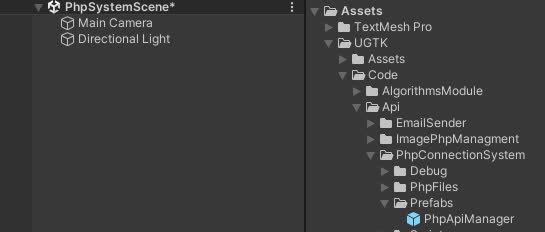
PhpConnectionSystem
PhpConnectionSystem is a system that allows you to connect to a server and send data.
Completed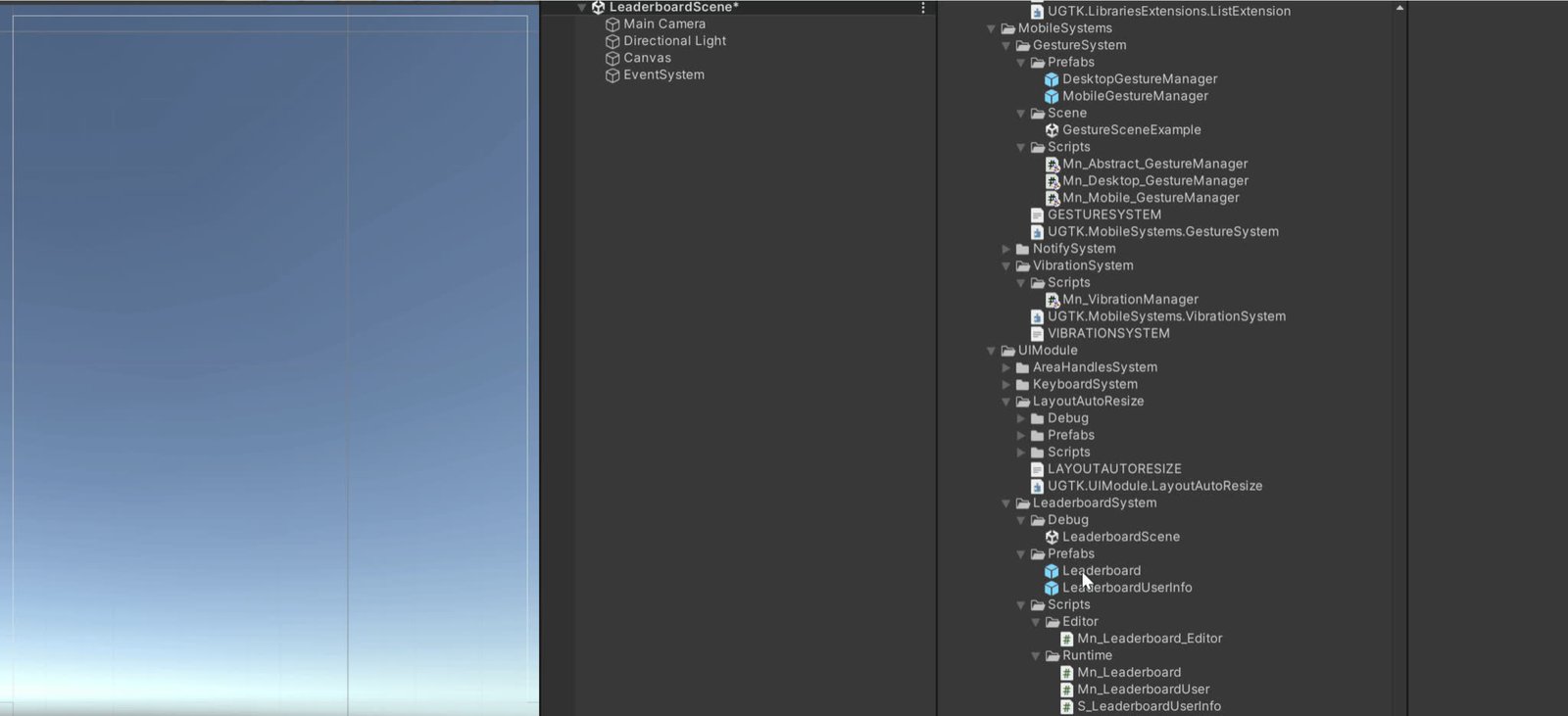
Leaderboard Api System
Server-side leaderboard management for submitting and fetching ranked scores.
Completed