 UGTKengine within an engine
UGTK / Systems / Utility Systems / Level Streaming System Completed

Level Streaming System
Summary
The Level Streaming System loads and unloads scenes additively from one component: a serialized
list of levels, async load/unload with events on every stage, and an optional object-optimization pass
that disables renderers (or whole GameObjects) that are too far from the camera or off screen.
It is the piece you need for an open level split into chunks, or for a hub that streams in the room the player is entering.
Content
Modules Dependencies
None. One runtime component plus a debug helper; it only uses UnityEngine.SceneManagement.
Setup
There is no prefab: add Mn_LevelStreamingSystem to a GameObject that lives for the whole session.
- Fill the Levels list — each entry takes a scene name, or a
SceneAssetyou can drag in from the editor (the name is derived from it). - Add every streamed scene to Build Settings. A scene that is not in the build list cannot be loaded at runtime, and the failure is a console error, not an exception.
- Bind
LoadLevel/UnloadLevelto buttons, triggers or your own code.
How To Use
Behavior - Allow Parallel Operations (off by default): with it off, a load/unload request while another is running is ignored — which is what you want, because two async scene operations on the same scene race each other. Turn it on only if you stream several independent chunks at once. - Set Loaded Level As Active: makes the newly loaded scene the active one, so new objects, lightmaps and the skybox come from it. - Debug Log (on by default): logs every stage. Turn it off in a release build.
Events — OnLevelLoadStarted(string), and the matching finished/unload events: use them to show
a loading overlay, to enable the chunk's gameplay once it is really there, and to know when it is
safe to unload.
Good to know:
- Additive loading does not remove anything. The previous scene stays loaded with its objects,
its lights and its
AudioListener: two scenes each with a camera and a listener produce a warning and doubled audio. Keep the "systems" objects in one scene only. - Unload is asynchronous too: waiting for
OnLevelUnload…before re-loading the same scene avoids a whole class of "the objects are there twice" bugs. - Names must match exactly, case included. Using the
SceneAssetfield in the editor removes the typo risk, but the built player still resolves it by name.
Object Optimization
Independent of streaming, the component can cull a list of objects to keep a heavy chunk cheap while it is loaded but not in front of the player:
- Reference Camera / Reference Transform (with Fallback To Main Camera): what the distance and visibility are measured against.
- Use Distance Optimization + Max Distance (per-target overridable with Use Custom Distance).
- Use Camera Visibility Optimization: an object outside the frustum is optimized too.
- Optimization Check Interval (default 0.25 s): the check is on a timer, not per frame.
- Action per target, three of them:
RenderersOnly— disables the renderers. The object keeps living and its scripts keep running.RenderersAndColliders— also disables the colliders, so the object drops out of physics queries and raycasts too. Do not use it for something the player can still walk into.SetActive— deactivates the whole GameObject. Cheapest, most invasive.
RenderersOnlyis the safe default: deactivating a whole GameObject also stops its coroutines and makes it invisible toFind, which breaks anything holding a reference to it.
Testing Scene
Open Debug/LevelStreamingSystemScene.unity. It holds LevelStreamingSystem with
Mn_LevelStreamingSystem and Mn_LevelStreamingSystemTest, and two levels are already
registered: LevelStreaming_Forest and LevelStreaming_Cave, two tiny scenes in Debug/Levels/
each holding one shape, so you can tell at a glance which is loaded.
Press Play, then use the Editor Test Tools at the bottom of the inspector:
- Load on level 0 —
LevelStreaming_Forestappears in the Hierarchy as a second open scene, and the row is markedloaded. The main scene never went away: this is an additive load. - Load on level 1 too, and both are open at once.
- Unload removes each of them again.
The check above the buttons is the part worth having. Outside Play Mode the block reports, per level, whether that scene is in the Build Settings and enabled — and refuses with an error if it is not. An additive load of a scene missing from the build list fails at runtime with a message that says nothing useful about which entry is wrong, and on a device it fails in the build only. Seeing it in red in the inspector, before pressing anything, is the whole point.
The two demo levels are in the Build Settings for exactly this reason. Add your own the same way, or the inspector will tell you off.
Technical Info
| Path | Content |
|---|---|
Scripts/Runtime/Mn_LevelStreamingSystem.cs |
The component: level list, async load/unload, events, and the object-optimization pass. Declares S_LevelEntry, S_OptimizationTarget and E_OptimizationAction |
Debug/Mn_LevelStreamingSystemTest.cs |
Debug helper that triggers load/unload from the test scene |
Debug/LevelStreamingSystemScene.unity |
Test scene |
© 2026 Marcello De Bonis. All rights reserved
More in Utility Systems.
all 34 →
Pooling System
The Pooling System efficiently manages and reuses GameObject instances.
Completed
RandomicListElements System
The Randomic List Element System manages lists where each element has a unique percentage, ensuring totals equal 100%, with support for locking, syncing, and random selection.
Completed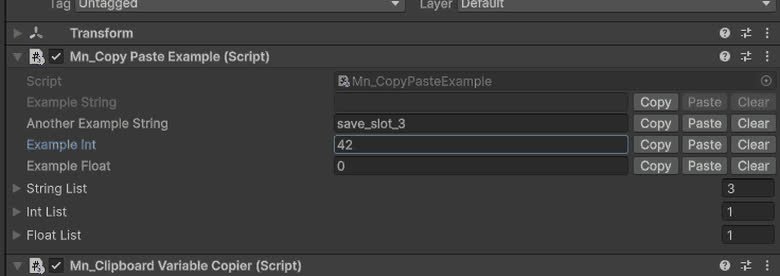
Copy Paste System
The Copy Paste System enhances Unity's Inspector with Copy, Paste, and Clear buttons for efficient string manipulation.
Completed
Image Picker
Component that allow in a WebGL build to get an image from user computer
Completed