 UGTKengine within an engine
UGTK / Systems / Utility Systems / RandomicListElements System Completed

Randomic List Element System
Summary
The Randomic List Element System is a utility system for managing lists where each element has an associated percentage value. This system ensures that the sum of percentages across all elements in the list always equals 100%, providing a consistent and controlled distribution of values. The system supports functionalities such as adding and removing elements, locking percentages, synchronizing all unlocked percentages, and randomly selecting an element based on its percentage weight using the RandomicList_Extension library.
Content
Modules Dependencies
The Randomic List Element System module requires the following dependencies:
- Unity Editor: The custom
PropertyDrawerforRandomicListrequires Unity's editor scripting capabilities to render the lists and manage the percentage logic in the Inspector.
Ensure that Unity's editor scripting is enabled and configured correctly in your project.
Setup
To set up the Randomic List Element System, follow these steps:
Setting Up Percentage Lists
-
Create or use an existing MonoBehaviour:
-
In your
MonoBehaviourscript, define fields of typeRandomicList<T>to manage lists of different data types. -
Apply the
[RandomicList]attribute to these fields to enable custom rendering in the Inspector.```csharp
public class ExampleUsage : MonoBehaviour
{
[RandomicList] public RandomicList<MyStruct> mystructs;

[RandomicList] public RandomicList<GameObject> gameObjects;

[RandomicList] public RandomicList<string> strings;
}
```
How To Use
To use the Randomic List Element System, you can interact with the lists directly through the Unity Inspector or programmatically:
-
Add an Element:
-
In the Inspector, click the "Add Element" button to add a new item to the list. The system automatically adjusts the percentages of existing elements to accommodate the new item.
-
Remove an Element:
-
Click the "Remove" button next to an item in the list to remove it. The percentage previously assigned to the removed item is redistributed among the remaining elements.
-
Lock/Unlock Percentages:
-
Toggle the "Lock" checkbox to prevent an element's percentage from being modified. Locked percentages are excluded from automatic adjustments when adding or removing elements.
-
Sync All Percentages:
-
Click the "Sync All" button to evenly distribute the percentage among all unlocked elements in the list.
-
Update Percentages Programmatically:
-
You can programmatically update the percentage of a specific element using the
UpdatePercentagemethod in your code.```csharp
mystructs.UpdatePercentage(0, 25f);
```
-
Randomly Select an Element:
-
Use the
RandomicList_Extension.GetRandomElementmethod to select an element from the list based on their percentage weights.```csharp
MyStruct randomStruct = RandomicList_Extension.GetRandomElement(mystructs);
```
Testing Scene
The scene component is Mn_RandomicListTest, in UtilitySystems/RandomicListElementsSystem/Debug/.
Wire the buttons of the scene to its public methods through their onClick.
What to do, in order:
-
Fill the table with a few entries, for instance 70 / 25 / 5.
-
Press Estrai with the default ten thousand draws.
-
Compare each measured share with its target; press Estrai again to watch the drift shrink.
-
Change the total so it no longer adds up to 100, and draw again.
Testing a probability table by hand is not testing it: a 5% drop and a 0.5% drop are indistinguishable
over a dozen tries. The component flags any bucket more than two points off its target, and warns when
the total is not 100 — because the draw normalises on the total, so the effective odds stop matching
the numbers written in the inspector.
Technical Info
The following are the main scripts and workflow of the Randomic List Element System. Refer to the script section for detailed structure.
Scripts:
-
Mn_PercentageListExample: Demonstrates how to use the
RandomicList<T>within aMonoBehaviour, showcasing various data types such asMyStruct,GameObject, andstring. -
RandomicListElement: Represents a single element within a
RandomicList<T>, containing the item and its associated percentage. This class also supports locking the percentage to prevent automatic adjustments. -
RandomicListAttribute: A custom attribute used to apply a
PropertyDrawerto fields of typeRandomicList<T>. This attribute is essential for enabling the custom Inspector interface. -
RandomicList: The core class that manages a list of elements with associated percentages. It ensures that the sum of all percentages is always 100%, handles element addition and removal, and provides methods to update and sync percentages.
-
RandomicListDrawer: A custom
PropertyDrawerthat handles the rendering and interaction ofRandomicList<T>fields in the Unity Inspector. This class includes features for adding/removing elements, locking percentages, and syncing all unlocked percentages. -
RandomicList_Extension: A static utility class that provides functionality for randomly selecting an element from a
RandomicListbased on the percentage weights.
© 2026 Marcello De Bonis. All rights reserved
More in Utility Systems.
all 34 →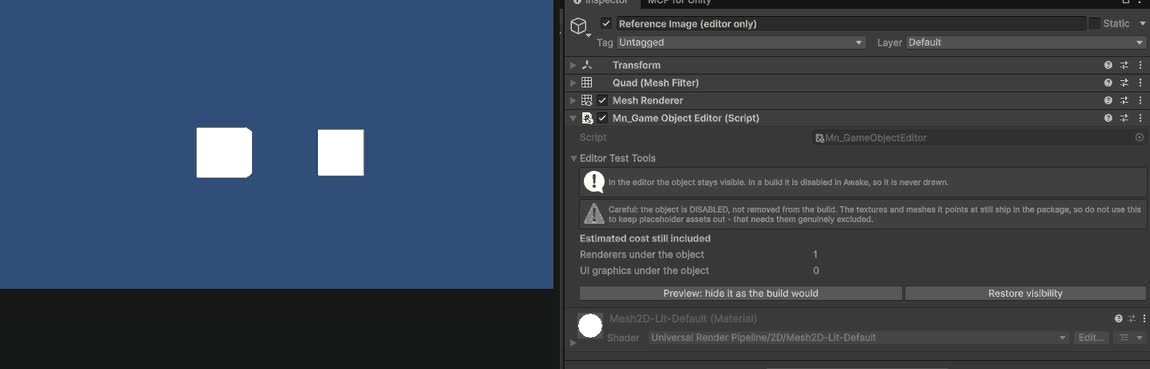
GameObject Editor System
Editor tools for inspecting and batch-editing GameObjects in complex scenes.
Completed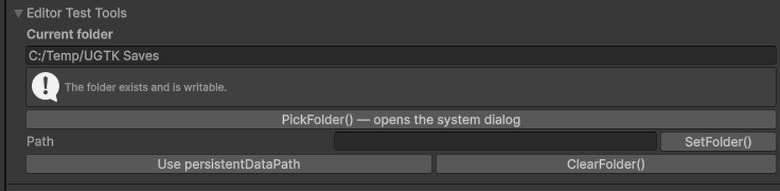
Folder Path System
Centralized management of folder paths used by other systems (saves, logs, exports, etc.).
Completed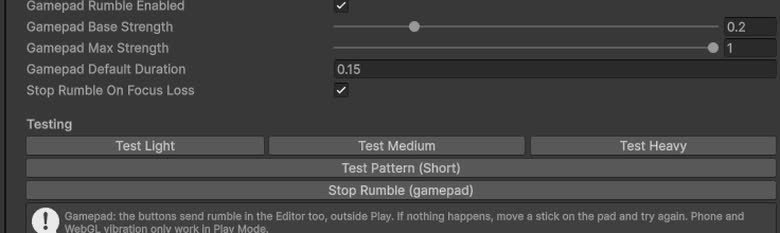
Vibration System (Utility)
Utility wrapper to trigger vibration/haptic feedback from non-mobile-specific contexts.
Completed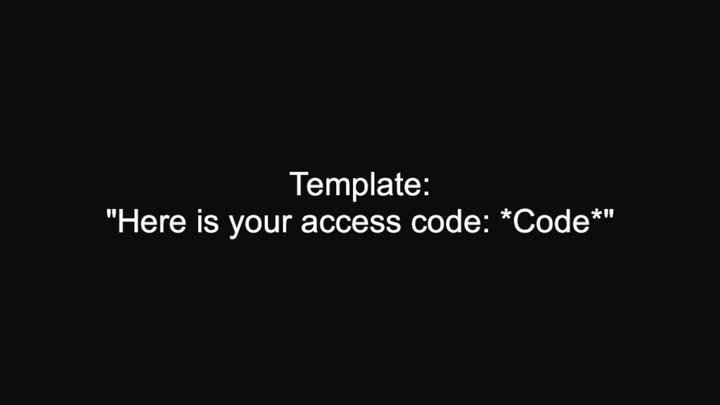
Replace Special Word
Substitutes *tokens* inside a text template with values supplied at runtime.
Completed