 UGTKengine within an engine
UGTK / Systems / Utility Systems / Hierarchy Overwritten Completed

Hierarchy Overwritten
Summary
Hierarchy Overwritten is an editor-only module that repaints Unity's Hierarchy window to make a
large scene readable at a glance: alternating row backgrounds, colour rules by name, Tag/Layer badges,
component icons, separators and group headers, per-object visibility and lock toggles. Everything is
modular, everything can be turned off one piece at a time, and everything is stored in a
ScriptableObject you can commit so the whole team sees the same Hierarchy.
Nothing of it ships: the assembly is marked Editor-only, so there is zero cost in a build.
Content
Modules Dependencies
None. No runtime dependency; the assembly definition is Editor-only and uses UnityEditor APIs
exclusively.
Setup
There is nothing to add to a scene and no prefab, so there is no GIF: the module hooks itself into the Hierarchy window as soon as it is imported.
- Open Tools ▸ UGTK ▸ Hierarchy Overwritten ▸ Open Settings.
- If
HierarchyOverwrittenSettings.assetdoes not exist yet it is created for you. - Turn the modules on and pick the colours (row background, name highlight, badges, …).
The same options are also available under Tools ▸ UGTK ▸ Hierarchy Overwritten ▸ Project Settings (UGTK)…, which is the page to use when you want the choices versioned with the project.
In a hurry? Force Enable & Demo Colors switches everything on with a sensible palette, so you can see what the module does before tuning it.
How To Use
Open any scene and look at the Hierarchy: rows are tinted, disabled objects and prefabs stand out, Tag/Layer badges and component icons appear next to the names, and objects whose name starts with a marker become separators or section headers.
The Tools ▸ UGTK ▸ Hierarchy Overwritten menu holds the actions:
| Menu item | What it does |
|---|---|
| Open Settings | Selects (creating it if needed) the settings asset |
| Project Settings (UGTK)… | Opens the same options inside Project Settings |
| Force Enable & Demo Colors | Turns every module on with a demo palette |
| Refresh Hierarchy | Forces a repaint after changing the settings |
| Create Separator | Creates a separator object in the current scene |
| Create Group Header | Creates a section header object |
| Open Debug Scene | Creates and opens the demo scene if it is not there yet |
| Populate Debug Scene | Fills the demo scene with the sample objects |
Good to know:
- Naming conventions are the input. The name rules match by prefix, suffix, contains or a simple
regex, so the module rewards a convention (
UI_,FX_,SYS_) — it does not invent one for you. - Settings are per project, not per user. The asset lives in the module folder: committing it shares the look with the team, so agree on the palette before everyone tweaks it.
- It draws on every Hierarchy repaint. With every module on, in a scene with thousands of objects, the Hierarchy can feel less responsive: turn off the badge modules first, they are the expensive ones.
Features
All modular, all individually switchable:
- Row Background — alternating even/odd colours, plus dedicated highlights for disabled, static, broken or "key component" objects, with configurable opacity so it blends with your editor theme.
- Name Highlight — colour rules by name (prefix / suffix / contains / simple regex) and a palette
per category; names starting with
#,@or[GROUP]become group headers. - Tag & Layer Badge — small coloured badges to the right of the name, with per-Tag and per-Layer colours and a compact mode for dense scenes.
- Component Badge — icons for the components that matter (Camera, Light, Canvas, AudioSource, your own scripts), cached for performance, so you can see what makes an object special without opening the Inspector.
- Separator & Group Header — special rows for objects named
---or[Separator], and section headers with centred text and their own background. - Scene Header — dedicated style for scene rows in multi-scene setups, with a Loaded / Unloaded badge.
- Lock & Visibility — clickable icons to hide/show an object in the Scene view
(
SceneVisibilityManager) and to lock/unlock picking. Invaluable on complex UI and character rigs. - Preset & Settings — everything in one
ScriptableObject, exposed in Project Settings, designed to be extended with new modules without touching the core.
Testing Scene
This module has no component to drop in a scene: it redraws the Hierarchy window itself, so the
test scene is whatever is open. Use Tools → UGTK → Hierarchy Overwritten → Open Debug Scene, which
creates Debug/HierarchyOverwrittenScene.unity if it is not there and opens it.
The demo scene is a hierarchy shaped the way a real one gets shaped: three === SECTION === rows, a
player with a child, a canvas with a health bar, an audio source. Everything you can see comes from
the module:
- Section rows drawn centred, in colour, instead of as ordinary objects.
- Alternating row backgrounds, so the eye tracks a line across the panel.
- Component badges on the right — camera, canvas, image, audio — which tell you what an object is without selecting it.
The rest of the menu is the authoring side:
- Create Separator adds a
--- Separator ---row, and Create Group Header adds a# Group Nameone. Both are ordinary empty GameObjects: rename them and the module restyles them. - Force Enable & Demo Colors turns everything on with a readable palette, which is the fastest way to see what the module does before tuning it.
- Open Settings selects the settings asset, where the row colours, the tints for prefabs and for broken objects, the name rules and the tooltip rules live.
Two things worth knowing before committing it to a shared project. The settings are per project,
not per user: the asset sits in the module folder, so committing it imposes your palette on
everyone. And Enable Per Repaint Component Cache should stay on — it is what keeps the badges
from costing a GetComponent sweep on every repaint of the panel.
Technical Info
Core
| Path | Content |
|---|---|
Scripts/Editor/HierarchyOverwrittenBootstrap.cs |
Registers the EditorApplication.hierarchyWindowItemOnGUI callback and dispatches to the active modules |
Scripts/Editor/HierarchyOverwrittenContext.cs |
Loads and caches the settings, registers the modules |
Scripts/Editor/HierarchyOverwrittenSettings.cs |
The ScriptableObject with every option, plus the rule types NameColorRule, TagColorRule, LayerColorRule, NameBackgroundRule, NameTooltipRule |
Scripts/Editor/HierarchyOverwrittenSettingsProvider.cs |
Project Settings page |
Scripts/Editor/HierarchyOverwrittenMenu.cs |
Menu entries and batch operations |
Modules — Scripts/Editor/Modules/: HoRowBackgroundModule, HoNameHighlightModule,
HoTagLayerBadgeModule, HoComponentBadgeModule, HoSeparatorModule, HoSceneHeaderModule,
HoLockAndVisibilityModule.
© 2026 Marcello De Bonis. All rights reserved
More in Utility Systems.
all 34 →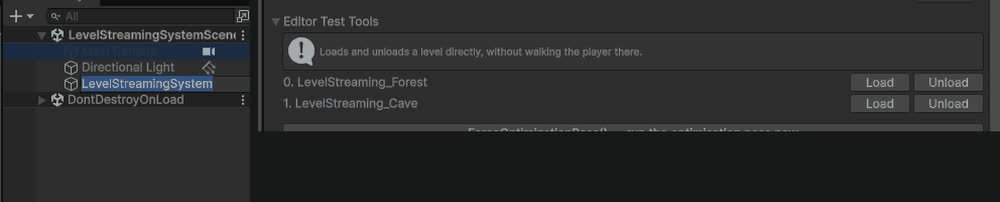
Level Streaming System
Additive async scene load/unload with events on every stage, plus a distance/visibility optimization pass on a list of target objects.
Completed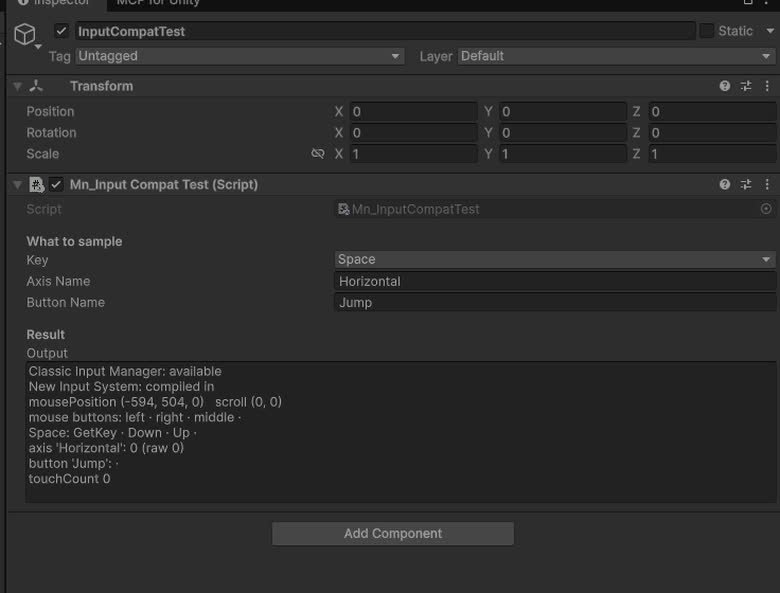
Input Compatibility
`UGTKInput`: drop-in replacement for `UnityEngine.Input` that works with the legacy Input Manager and the new Input System alike.
Completed
FPS Limiter System
Caps the frame rate from a component: target FPS, VSync and physics tick rate handled together.
Completed
Invisibile Mouse System
Keeps the cursor permanently hidden on Editor, Standalone and WebGL (with its own `.jslib` for the browser canvas).
Completed