 UGTKengine within an engine
UGTK / Systems / Utility Systems / FPS Limiter System Completed

FPS Limiter System
Summary
The FPS Limiter System caps the frame rate from a component instead of from scattered
Application.targetFrameRate calls. It sets the target FPS, optionally turns VSync off (without
which the target is simply ignored on desktop) and optionally pins the physics tick rate — the three
settings that always have to move together. Use it to save battery on mobile, to keep a kiosk quiet,
or to reproduce a slow device on your own machine.
Content
Modules Dependencies
None. Two MonoBehaviours, no UGTK reference.
Setup
Drop the FPSLimiter prefab into the scene — a GameObject with Mn_FPSLimiterSystem already on
it. It applies itself in Awake, so there is nothing to call:
Or add Mn_FPSLimiterSystem to any GameObject: the component is [DisallowMultipleComponent], and
one per scene is enough since every setting it touches is global.
How To Use
Frame Rate
- Target Fps (default 30): the FPS you want. Typical values are 30, 45, 60, 120. Below 1 it is
forced back to 30.
- Auto Apply Target Changes (default on): Update watches targetFps and re-applies as soon as
it changes — which is what makes the value editable live from the inspector while playing.
VSync
- Disable VSync (default on): sets QualitySettings.vSyncCount = 0. Leave it on: with VSync
active the platform decides the frame rate and targetFrameRate is ignored, so the limiter would
do nothing.
Physics
- Set Fixed Delta Time (default on) + Fixed Update Rate (default 50): writes
Time.fixedDeltaTime = 1 / rate. Keeping physics at 50 Hz while rendering at 30 FPS means two
physics steps per frame; dropping the rate to match the FPS makes physics cheaper but less
accurate. If in doubt, leave 50.
fpsLimiter.SetTargetFps(60);          // sets and re-applies at once
fpsLimiter.ApplySettings();           // re-applies everything (VSync, target, fixedDeltaTime)

int wanted  = fpsLimiter.RequestedTargetFps;   // what the component asked for
int applied = fpsLimiter.AppliedTargetFps;     // what Unity actually reports
Comparing those last two is the quickest way to see that the platform refused the request.
Good to know:
- On WebGL the target is ignored: the browser drives the loop through
requestAnimationFrame, so the page's refresh rate wins.AppliedTargetFpsshows it. Time.fixedDeltaTimeis global and sticky: it stays as you set it for the rest of the session (the Editor restores it when you leave Play Mode, a build does not). One limiter per project, and do not fight it from elsewhere.ApplySettings()logs every time it runs. With Auto Apply on, a script that changestargetFpsevery frame produces one log line per frame: change the value once, or turn Auto Apply off and callSetTargetFpsyourself.- A cap is a ceiling, not a floor: it never makes a slow scene faster. If the measured FPS is below the target, the bottleneck is elsewhere.
Testing Scene
Open Debug/FPSLimiterSystemScene.unity and press Play: Mn_FPSLimiterSystemTest measures the real
frame rate and logs it to the console once a second, next to the requested target — change Target
Fps in the inspector while playing and watch the measured value follow it.
Technical Info
| Path | Content |
|---|---|
Scripts/Runtime/Mn_FPSLimiterSystem.cs |
The component: ApplySettings() (VSync, targetFrameRate, fixedDeltaTime), the live-change watch in Update, SetTargetFps |
Debug/Mn_FPSLimiterSystemTest.cs |
Test helper: counts frames and logs the measured FPS against the target every logInterval seconds |
Prefabs/FPSLimiter.prefab |
Ready-made GameObject with the component |
Debug/FPSLimiterSystemScene.unity |
Test scene: camera, light and the limiter with its test helper |
Mn_FPSLimiterSystem API: ApplySettings(), SetTargetFps(int), RequestedTargetFps,
AppliedTargetFps.
© 2026 Marcello De Bonis. All rights reserved
More in Utility Systems.
all 34 →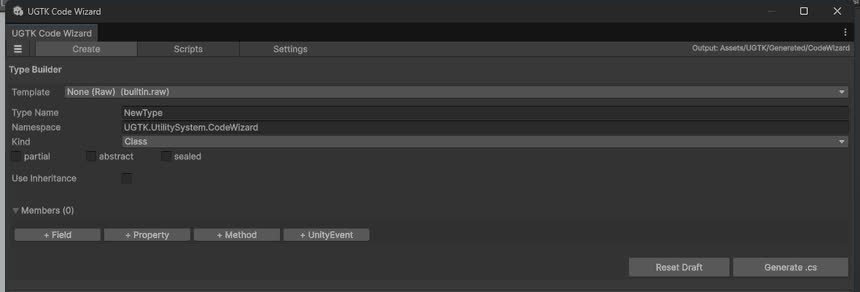
Code Wizard
Editor wizard that automates generation of boilerplate UGTK code and ScriptableObjects.
Completed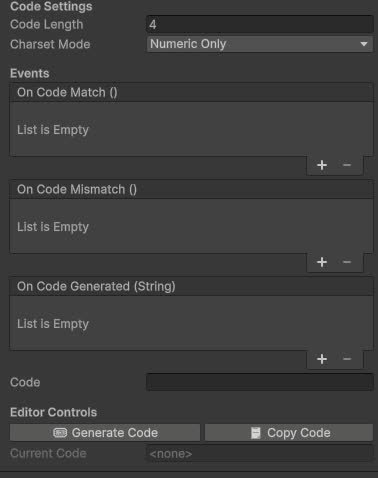
Codes Generator
Utility for generating unique codes/keys (for coupons, invites, etc.) with customizable formats.
Completed
Web Param System
Reads and exposes query-string parameters (e.g. from WebGL builds) to drive in-game behaviour.
Completed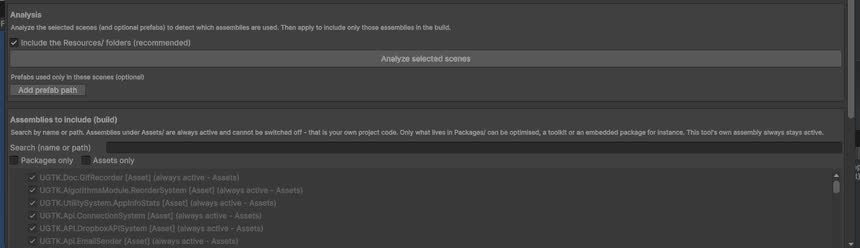
UGTK Assembly Manager
Centralizes references to UGTK assemblies and modules, easing setup and dependency tracking.
Completed