 UGTKengine within an engine
UGTK / Systems / Component Module / Follow System Completed

Follow System
Summary
The Follow System makes an object chase a target: another object, the mouse cursor or the finger. The
movement is not a plain lerp — it is driven by an AnimationCurve, so the approach can accelerate, ease
out or overshoot, and it stops at a configurable distance from the target instead of landing on it.
Four ready-made components cover the usual cases: follow a UI element, follow a world object, follow the mouse, follow the touch.
Content
Modules Dependencies
- Generic Component: supplies the
Owner, which is the object that actually moves. - Movement Component: supplies
speedand theOnStartMoving/OnStopMovingevents. - Input Compatibility: the mouse and touch variants read input through
UGTKInput, so they work with both input backends.
Setup
Drop the prefab of the variant you need as a child of the object that has to move — the component moves its parent, not itself.
3D Follower Component — follows a Transform in the world:
2D Follower Component — follows a RectTransform in the UI:
Mouse Follower Component:
Touch Follower Component:
How To Use
1. Set the speed — how fast the owner travels, before the curve modulates it:
2. Choose instant or gradual. With instantFollow on, the owner is teleported and OnStopMoving
fires in the same frame — the curve and the speed are ignored entirely:
3. Set the stop distance — how far from the target the owner comes to rest. It is what keeps a follower from sitting exactly on top of what it follows:
4. Set the tolerance. Without it the owner keeps micro-correcting around the stop distance and visibly jitters; the tolerance is the dead zone that ends the movement:
5. Assign the target — RectTransform for the 2D component, Transform for the 3D one. The mouse and
touch variants need no target:
From code: SetTarget(t) / GetTarget(), and StartFollow() to begin a movement.
Curve Mode decides what the movementCurve means:
| Mode | The curve maps | Use it for |
|---|---|---|
Speed |
progress along the distance → speed multiplier | an approach that slows down as it arrives, or lunges at the start |
Distance |
elapsed time over time seconds → position |
a movement that must take a fixed duration regardless of how far the target is |
Good to know:
- The component moves its
Owner, that is its parent. Putting the prefab directly on the object to move does nothing visible — it would move the auto-generated parent instead. This is the single most common mistake with this module. continuousFollowingrestarts the movement when the target moves; without it the owner reaches the target's position at the momentStartFollowwas called and stops there, even if the target has left.startFollowingOnStartonly fires once, inStart. For an object spawned from a pool, callStartFollow()yourself when it is taken out.- Tolerance too small makes it flicker, too large makes it stop early: it is compared against the stop distance, not against zero.
2D means UI, 3D means world
This is the part the naming hides, and it decides whether the module works for you at all:
Mn_3DFollowComponenttargets aTransformand works in world coordinates. This is the one for scene objects, in both 2D and 3D games.Mn_2DFollowComponenttargets aRectTransformand copies itspositionstraight across. On a Screen Space - Overlay canvas that position is in screen pixels, which is why it works for UI.Mn_MouseFollowComponent/Mn_TouchFollowComponentreturn the cursor or finger position in screen pixels, with noScreenToWorldPointconversion. Put one of them on a world-space object and it flies off to coordinates in the hundreds: they are meant for UI on an Overlay canvas.
To have a world object follow the mouse, do not use these: convert the position yourself with
Camera.main.ScreenToWorldPointand feed aMn_3DFollowComponentthroughSetTarget.
Two more details on those two: the mouse variant returns the owner's current position while the cursor is
outside the window (so the follower parks instead of jumping), and both dereference Camera.main — a
scene with no camera tagged MainCamera throws.
Testing Scene
Open FollowScene.unity: the followers chase their targets, and you can change speed, distance,
tolerance and the curve in Play Mode to see each one take effect.
Technical Info
| Path | Content |
|---|---|
Scripts/Runtime/FollowComponents/Mn_FollowComponent.cs |
Abstract base: curve, stop distance, tolerance, instant/gradual, the movement coroutine |
Scripts/Runtime/FollowComponents/Mn_GameObjectFollowComponent.cs |
Generic base for the variants with a target: SetTarget / GetTarget |
Scripts/Runtime/FollowComponents/CurveMode.cs |
The Speed / Distance enum |
Scripts/Runtime/FollowComponents/Mn_3DFollowComponent.cs |
Follows a Transform in world space |
Scripts/Runtime/FollowComponents/2D/Mn_2DFollowComponent.cs |
Follows a RectTransform |
Scripts/Runtime/FollowComponents/2D/Mn_MouseFollowComponent.cs |
Follows the cursor, in screen coordinates |
Scripts/Runtime/FollowComponents/2D/Mn_TouchFollowComponent.cs |
Follows the first touch, in screen coordinates |
Scripts/Editor/* |
Custom inspectors for the three variants |
© 2026 Marcello De Bonis. All rights reserved
More in Component Module.
all 16 →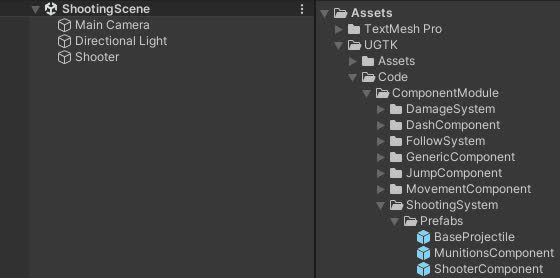
Shooting System
The Shooting System manages shooting mechanics, ammo handling, reloading, and projectile management using efficient pooling for performance.
Completed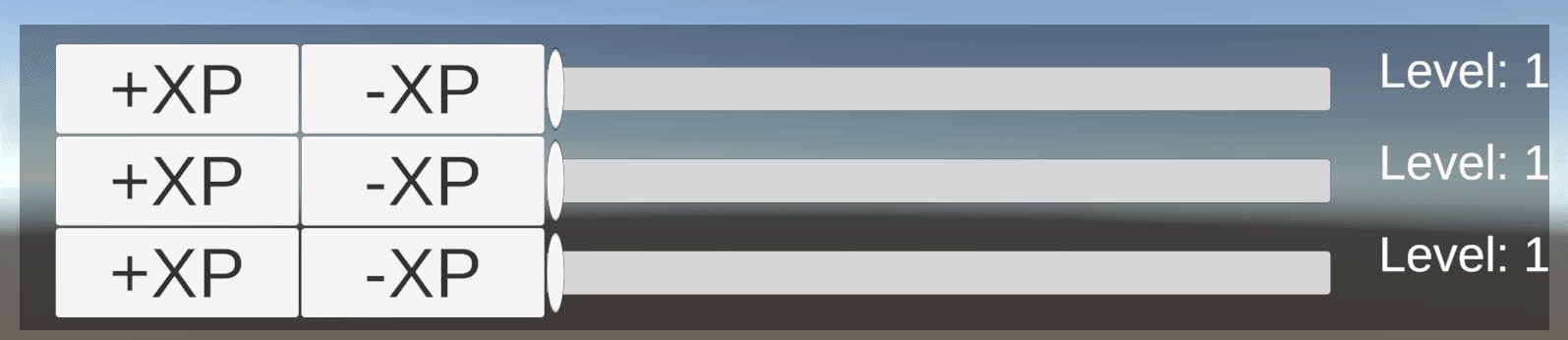
Level System
Level system for managing player levels and experience points, with differenct type of progression.
Completed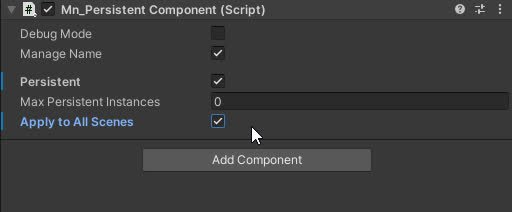
Persistent Component
The Persistent component that allow a gameObject to have one or multiple component with same owner name
Completed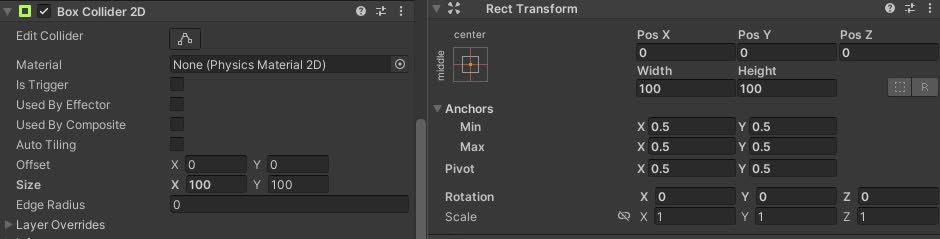
Collider AutoResize Component
Automatically resizes 2D box or capsule colliders on the owner to match the RectTransform size of a referenced UI element, both in play mode and in editor.
Completed