 UGTKengine within an engine
UGTK / Systems / Gameplay Systems / Audio System Completed

Audio System
Summary
The Audio System is a powerful tool for managing and manipulating game audio within Unity. It offers advanced control over audio playback, including play, pause, resume, stop functions, and dynamic volume adjustments across different audio channels. The system utilizes audio pooling to handle playback efficiently, activating and deactivating audio sources as needed.
Content
Modules Dependencies
The Audio System module requires the following dependencies:
- PoolingSystem: Manages the creation and destruction of audio sources for efficient performance.
- DatabaseSystem: Provides the
SO_AudioDatabasefor storing audio clip data. - Singleton: Ensures a single instance of the
Mn_AudioManager.
Ensure that these dependencies are correctly imported and configured in your project.
Carried inside the prefabs. These modules are not referenced by the assembly definition - the components are simply already attached to the prefabs this module ships. Remove one of them from the project and the prefab keeps its layout and loses that behaviour, with nothing in the console to say so.
| Module | Component, and the prefab carrying it |
|---|---|
UIModule/TextUpdaterSystem |
Mn_TextUpdater (in AudioModifier) |
UtilitySystems/ActivationSystem |
Mn_GameObjectActivation (in AudioTotalScreen) |
Setup
To set up the Audio System, follow these steps:
Audio Manager
- Add
AudioManagerprefab to your first scene:
- Set up Audio Settings channels:
Audio Database
- Create a new Audio database
2.Add the database to AudioManager
3.Create new Audio
How To Use
To use the Audio System, call the Mn_AudioManager public API (no static event bus):
- Reproduce Audio:
Mn_AudioManager.Instance.Play("MyAudioID");
- Pause Audio:
Mn_AudioManager.Instance.Pause("MyAudioID");
- Resume Audio:
Mn_AudioManager.Instance.Resume("MyAudioID");
- Stop Audio:
Mn_AudioManager.Instance.Stop("MyAudioID");
To modify volumes, call:
- Volume Change:
Mn_AudioManager.Instance.SetChannelVolume(E_AudioChannelType.Master, 0f);
Mn_AudioManager.Instance.SetChannelVolume(E_AudioChannelType.Music, 0f);
Mn_AudioManager.Instance.SetChannelVolume(E_AudioChannelType.Environment, 0f);
Mn_AudioManager.Instance.SetChannelVolume(E_AudioChannelType.Effects, 0f);
- Mute Channel:
Mn_AudioManager.Instance.MuteChannel(E_AudioChannelType.Master);
Mn_AudioManager.Instance.MuteChannel(E_AudioChannelType.Music);
Mn_AudioManager.Instance.MuteChannel(E_AudioChannelType.Environment);
Mn_AudioManager.Instance.MuteChannel(E_AudioChannelType.Effects);
- Unmute Channel:
Mn_AudioManager.Instance.UnmuteChannel(E_AudioChannelType.Master);
Mn_AudioManager.Instance.UnmuteChannel(E_AudioChannelType.Music);
Mn_AudioManager.Instance.UnmuteChannel(E_AudioChannelType.Environment);
Mn_AudioManager.Instance.UnmuteChannel(E_AudioChannelType.Effects);
Testing Scene
Open AudioScene in the module's Debug/ folder and select AudioManager. The
Play test and Active sounds blocks need Play mode, and outside it they say so rather than
showing an empty list.
What to do, in order:
- Pick a Track Id - the block reports the clip length - and press Play. Active sounds
lists it with its routing (
2D · Musichere) and a bar that follows the playhead. Stop empties the list again. - Play a clip from each category and check it lands on the right mixer group.
- Move the volume sliders and confirm each affects only its own group.
- Play many clips at once, past the number of available sources.
- Stop play and restart: the saved volumes should come back.
Step 4 is where a pooled audio system shows its limit: it either drops the new sound or steals a playing one, and which one it steals is very audible if it picks the music. Step 5 catches the common oversight of volumes that are applied but never persisted.
Technical Info
The following are the main scripts and workflow of the Audio System. Refer to the UML section for the detailed structure.
Scripts:
- Mn_AudioManager: Central manager for audio operations, handling the logic for playing, stopping, and managing audio sources.
- Mn_AudioController: Manages the playback of individual audio clips using
AudioSource. - SO_AudioDatabase: Scriptable object serving as an audio clip database, linking audio files to their respective playback settings.
- Mn_AudioManager audio notifications: Runtime C# events for
AudioPlayed/Paused/Resumed/Stopped(for code-driven sync). - AudioChannel: Represents an audio channel, encapsulating properties like volume and channel type.
© 2026 Marcello De Bonis. All rights reserved
More in Gameplay Systems.
all 18 →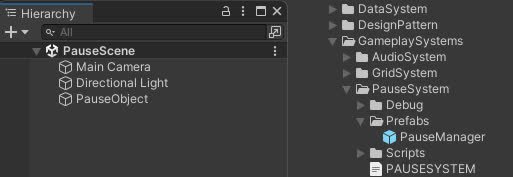
Pause System
Manages the pause and resume of the game, allowing to pause the game and resume it at any time.
Completed
Grid System
Manage gameobject placed in a 2D or 3D grid layout
Completed
Loading System
Manages loading screens and scene transitions, with hooks for progress feedback and events.
CompletedVisual Novel System
Visual novel framework with chapters, dialogues, choices, variables and conditional flows.
Completed