 UGTKengine within an engine
UGTK / Systems / Ui Module / Layout AutoResize Completed

Layout Auto Resize
Summary
The Layout Auto Resize module is a family of self-sizing layout containers (vertical, horizontal and grid) that add, remove, reorder and clear child items at runtime or in the editor, resizing their RectTransform to fit and firing events on every change.
Content
Modules Dependencies
This module depends on UGTK LibrariesExtensions: UGTK.LibrariesExtensions.GameObjectExtension (children helpers such as GetChildren/DestroyImmediateAllChildren) and UGTK.LibrariesExtensions.AnchorLibrary (E_AnchorPosition, SetAnchor).
Setup
Choose the prefab that matches the direction the content grows in, then put your elements under it:
| Prefab | Component | Arranges |
|---|---|---|
HorizontalAutoResize |
Mn_HorizontalAutoResize |
a row |
VerticalAutoResize |
Mn_VerticalAutoResize |
a column |
GridAutoResize |
Mn_GridAutoResize |
a grid |
Set the spacing and the S_Padding in the inspector; the children are then sized to fill the space
that is left. ElementExample shows what a child looks like.
For a list longer than the screen, start from Vertical Scroll View Autoresize or its horizontal
twin instead of adding a scroll view around one of the above - they are already wired, including
Mn_SelectorScrollView for bringing the current element into view.
This is not Unity's layout system, and the two fight if you stack them. These components write
the children's RectTransform directly, so a HorizontalLayoutGroup or a ContentSizeFitter on
the same object will keep overwriting the result and produce a layout that flickers or settles
somewhere neither of them intended. Use one or the other on any given object.
How To Use
- Add the container that fits your layout to a UI object:
Mn_VerticalAutoResizeorMn_HorizontalAutoResizefor single-axis lists.Mn_GridAutoResizefor a columns × rows grid.- Optionally assign an
itemPrefabandmaxItems(axis containers). Add items viaAddItem(GameObject), orAddItem()to instantiate the prefab; the container reparents, positions and resizes automatically. - Manage content with
RemoveItem,RemoveLastItem,RemoveItemAtIndex,ClearChildren, and (axis)MoveItemBefore/MoveItemAfter; the grid also supportsAddItemAtCoordinates/RemoveItemAtCoordinates. - Read children with
GetAllItems(),GetChild(index)orGetChild<T>(index), and subscribe toonItemAdded,onItemRemovedandonCleared.
Testing Scene
Open LayoutAutoResizeScene in the module's Debug/ folder.
What to do, in order:
- Add and remove children and watch the container resize.
- Put a very long text in one child.
- Resize the parent while the scene is running.
- Nest one auto-resize inside another.
Step 4 is the one that bites: two layouts each waiting for the other to settle can ping-pong for a frame or two, or never settle at all. If the layout flickers, that is what you are looking at.
LayoutAutoResizeScene: the row, the grid and the vertical list all size their children to
the space available. The <- and -> buttons drive Mn_SelectorScrollView, which brings the
current element into view - watch the middle panel change as the selection moves.
Technical Info
- Mn_LayoutAutoResize: abstract base with the add/remove/clear API, child accessors and the item events.
- Mn_AxisAutoResize: abstract single-axis base (defined in
Mn_SingleAxisAutoResize.cs) adding prefab-based creation,maxItemsenforcement, reordering and prefab-size preservation. - Mn_VerticalAutoResize / Mn_HorizontalAutoResize: concrete single-axis containers.
- Mn_GridAutoResize: grid container handling columns/rows, cell size, spacing, padding, free-resize and auto-centering.
- Mn_SelectorScrollView: helper scroll-view selector built on the layout.
- S_Padding: serializable top/bottom/left/right padding struct used by the grid.
© 2026 Marcello De Bonis. All rights reserved
More in Ui Module.
all 34 →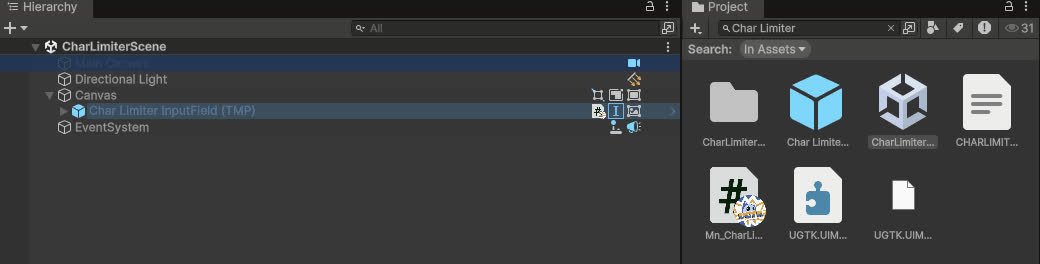
Char Limiter System
Limits and visualizes the remaining characters in input fields or text areas.
Completed
Drawing System
2D drawing canvas system for pointer/touch drawing and saving strokes.
Completed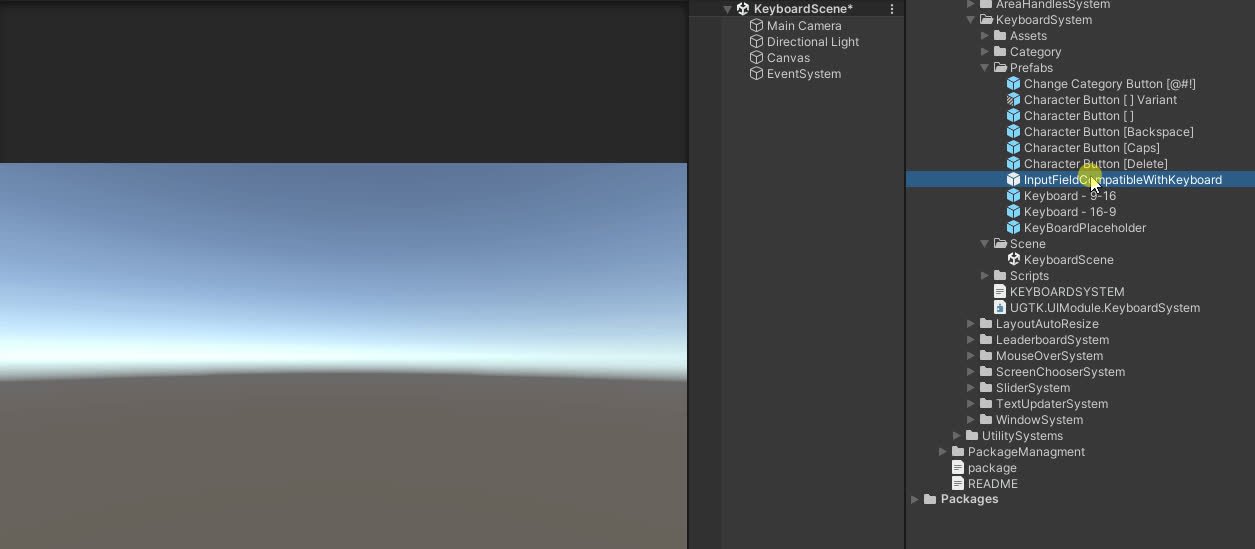
Keyboard System
Keyboard on screen that allow the mouse/touch only to type on a inputfield
Completed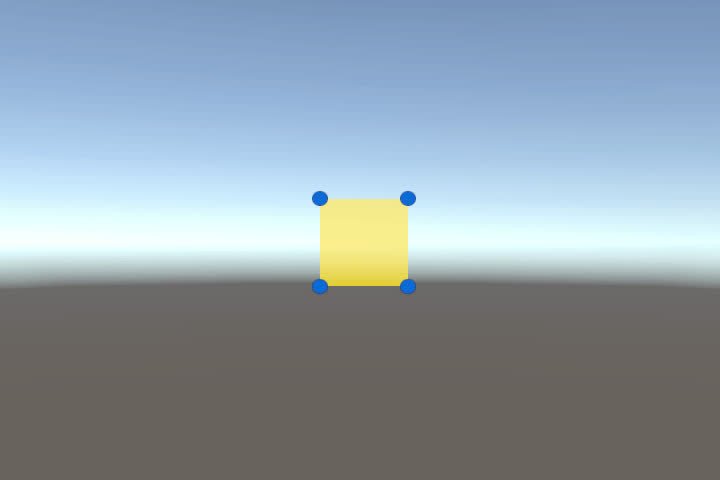
Area Handles System
UI element that can be move and resized in Game
Completed